Working with Document Data
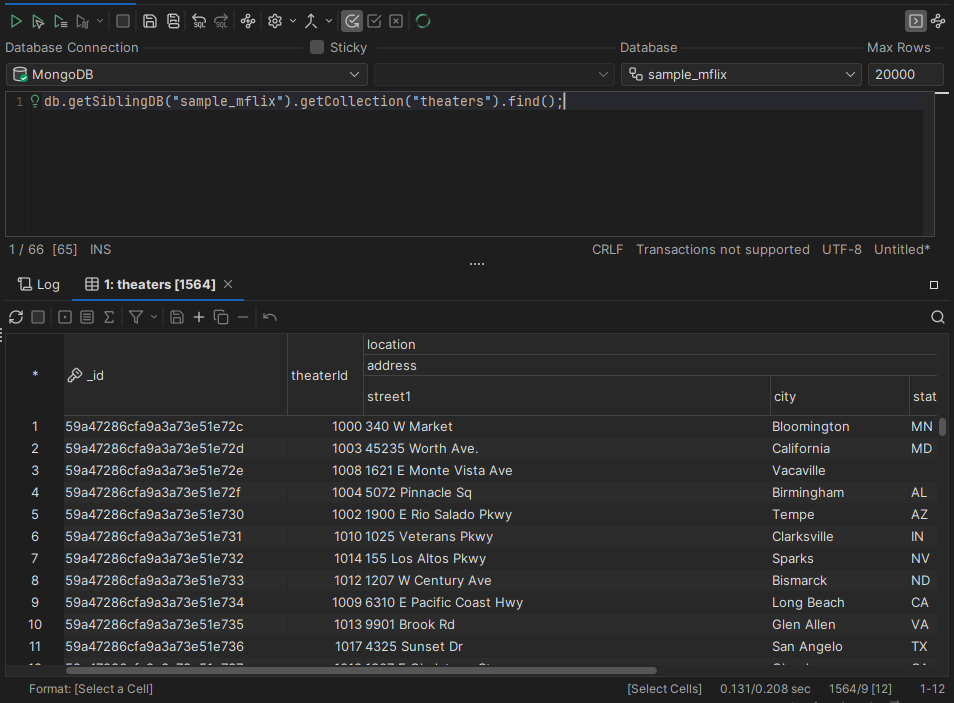
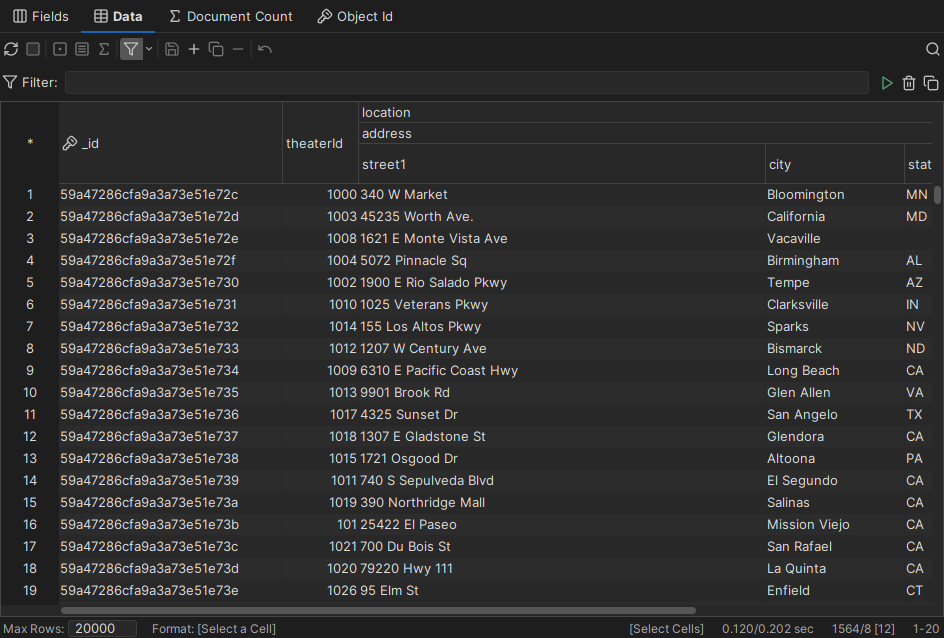
Documents, as in MongoDB and Couchbase, can contain nested data, which doesn't fit in an ordinary grid. DbVisualizer shows documents in a grid with nested column headers, and in a document viewer that shows the whole document as JSON.
This is supported for MongoDB and Couchbase.
Expanding nested columns
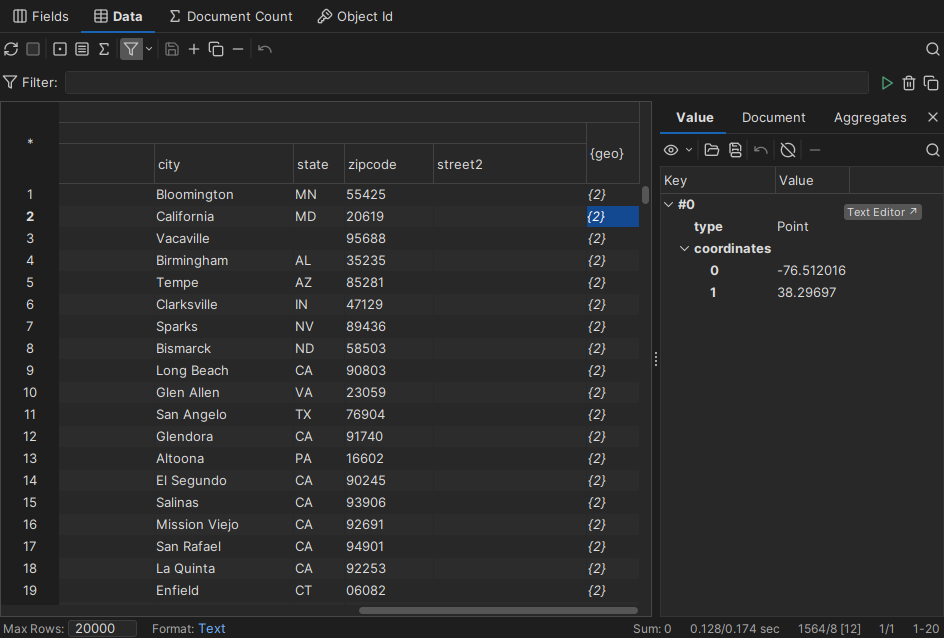
The column headers follow the structure of the documents. To expand or collapse a group of columns, double-click its header, or use the right-click menu of the header. When a group is collapsed, its data is collapsed in the grid too. To see the whole value of a collapsed cell, use the value viewer.
Filtering documents
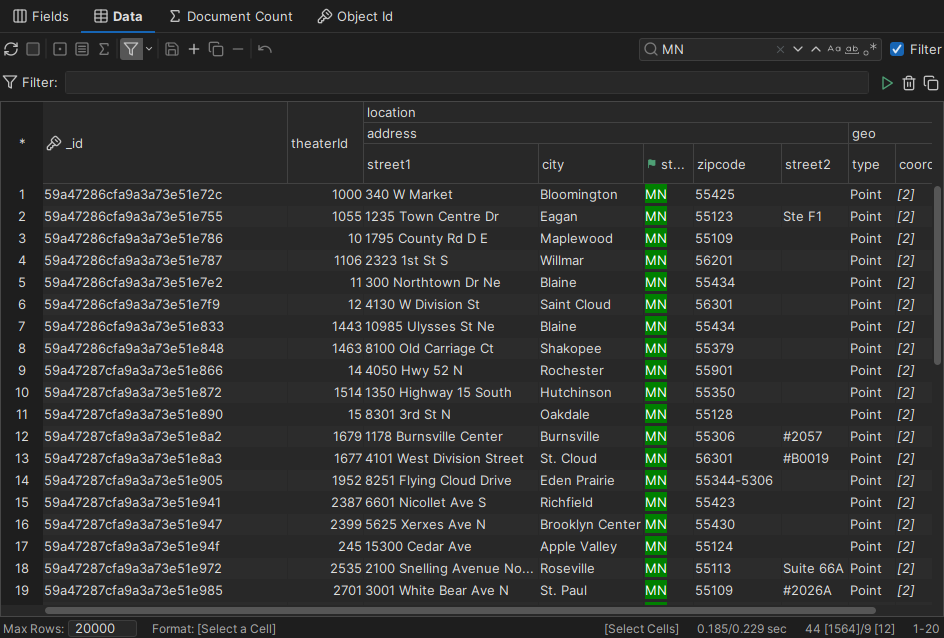
As in other grids, you can use quick search to filter the documents that are already in the grid.
A where filter limits the documents fetched from the database. For MongoDB, write it in MongoDB Shell syntax.
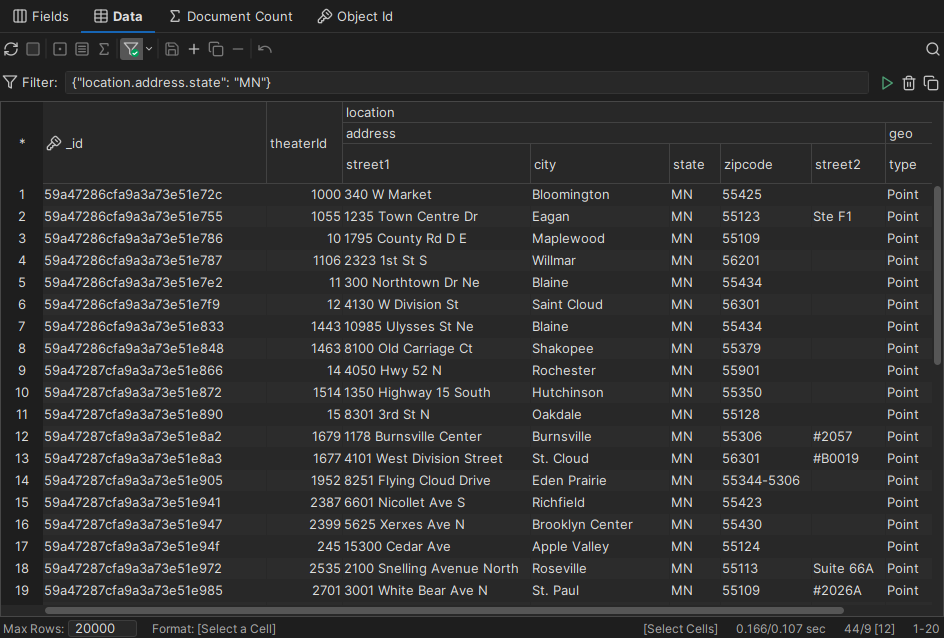
Viewing a whole document
For documents, the Document viewer replaces the record viewer. It shows the document as JSON, as a tree or as text.
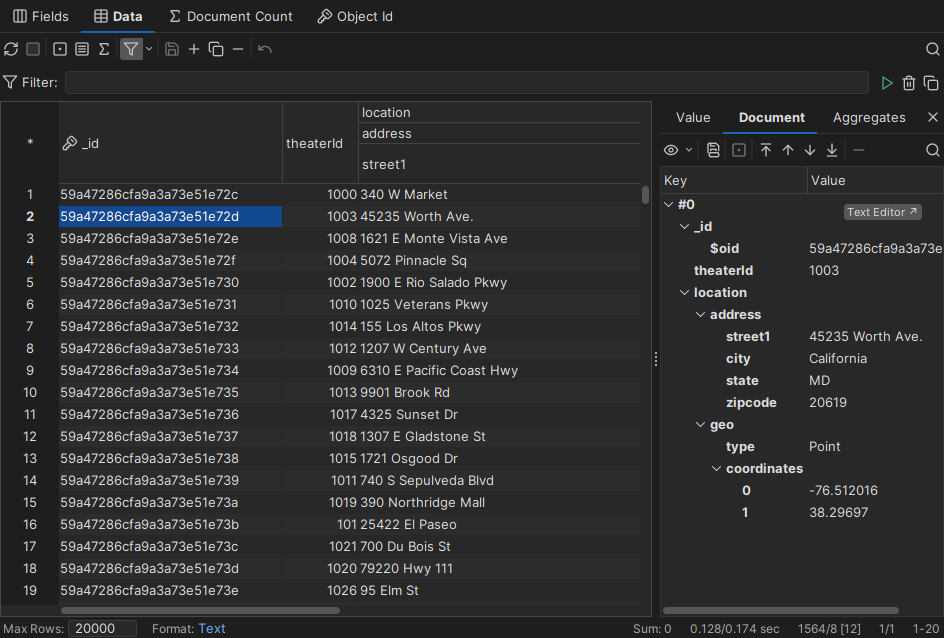
Editing documents
Only in DbVisualizer Pro
This feature is only available in the DbVisualizer Pro edition.
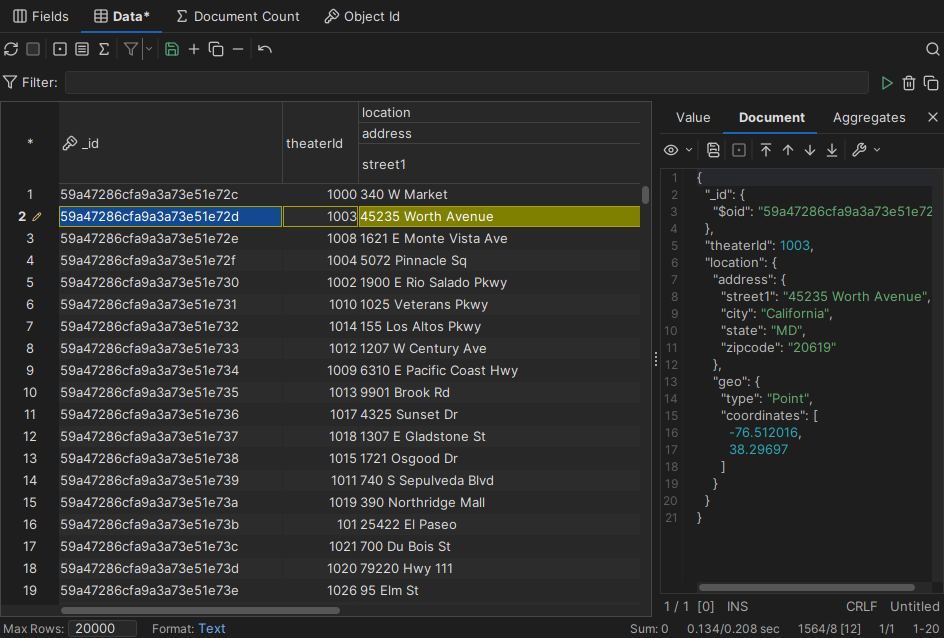
When editing is supported, you can edit values in the grid, in the Value tab or in the Document tab. A change in one place is shown in the others at once, and changes that aren't saved are marked with a color in the grid. To edit a collapsed value in the Value tab, or a document in the Document tab, switch to the text view.
| To | Do this |
|---|---|
| Add a document | Use the grid. To add a document from JSON, for example when the collection is empty or the document has another structure, select Add Document in the right-click menu of the collection in the Databases tab, or in the Actions menu of the Data tab. |
| Remove a document | Use the grid. To remove many documents, use a script. |
| Add a field to a document | Edit the document in the Document tab. After you reload the grid, the new column is shown, and you can fill it in for other documents. |
| Remove a field | To remove it from one document, edit the document in the Document tab. To remove it from the whole collection, use a script. |
For other changes, run scripts in SQL Commander.
Using scripts
You can fetch and change documents using scripts in SQL Commander. For MongoDB, use MongoDB Shell syntax. The results are shown in the same kind of grid as the Data tab.