Creating a Trigger
Only in DbVisualizer Pro
This feature is only available in the DbVisualizer Pro edition.
Using the Create Trigger dialog, you create a trigger for a table, and then edit its code in the trigger editor.
Creating the trigger
In the Databases tab, right-click the table and select Create Trigger.
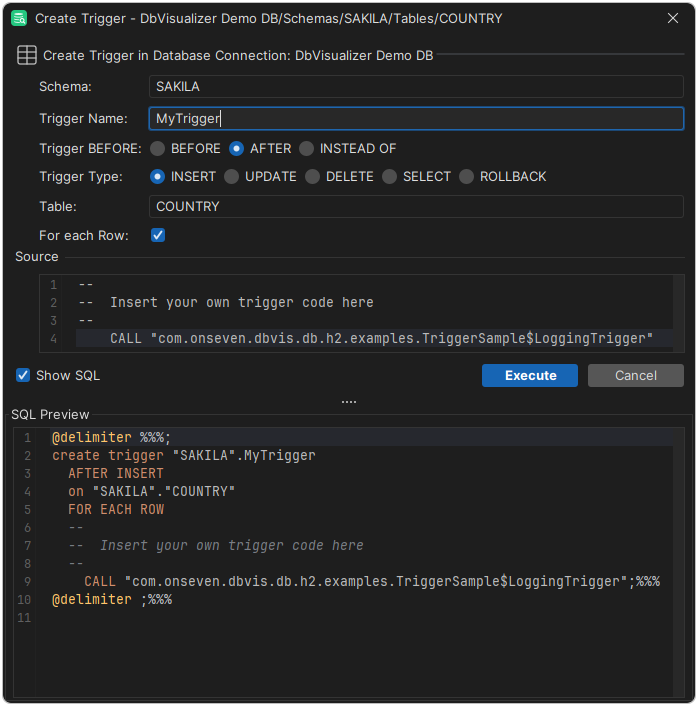
Fill in the fields, such as the name of the trigger. The fields depend on the database.
- The Source area has stub code, which you can edit later in the trigger editor. For most databases, you can keep it as it is. For some, you must change it to match your objects.
- Click Execute.
Editing the trigger code
- In the Databases tab, expand the Triggers node of the table, and double-click the trigger.
- In its Object View tab, open the Trigger Editor tab and edit the code.
- Click Save Edits in the toolbar. For some databases, this also compiles the trigger.
If the database reports errors, they are underlined in the editor for most databases. Point to the underline to see the message. The errors are also listed in the Log tab. Click the icon next to an error to go to its position, if the database reports it.