Editing Table Data
Only in DbVisualizer Pro
This feature is only available in the DbVisualizer Pro edition.
You can edit data directly in a grid; click a cell value to start editing. Edits are saved in a single database transaction, so either all changes or none are committed. You can also edit binary and large text data, and common data formats are shown in dedicated viewers, such as image, PDF, XML, and HEX.
You can edit data in these grids:
- The Data tab of a table or a view.
- A result set in SQL Commander, if the query selects columns from a single table. See Editing a Result Set for the exact requirements and how to see why a result set is read-only.
Editing works the same way in all of them.
In DbVisualizer Free, editing in data grids is not supported. Instead, you can edit data by running SQL statements in SQL Commander. You can write the statements yourself or generate them from the selected rows in a data grid. See Script to SQL Commander.
Opening the Data tab
To open the Data tab for a table or a view:
- Locate the table or view in the Databases tab tree.
- Double-click the node to open its Object View tab.
- Open the Data sub-tab.
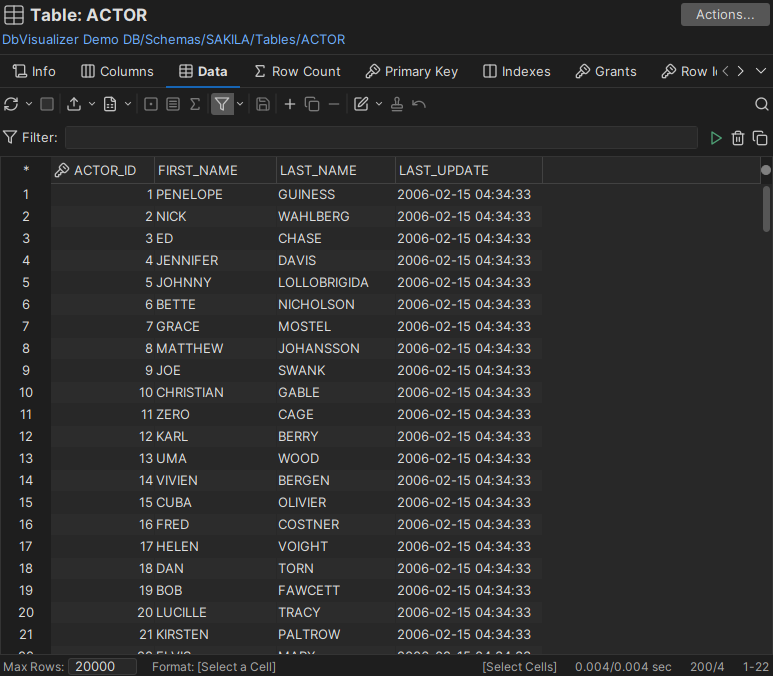
Each column width is automatically resized to match the column width, including the column header, by default. You can disable this behavior in the the Tool Properties dialog, in the Grid category under the General tab.
If Auto Resize Column Widths is enabled, the Max Column Width setting can be used to limit the column width so that an extremely wide column does not take up all space.
Editing data in the grid
To edit a value:
- Select the cell.
- Type the new value, or double-click the cell to modify the current value.
- Click the Save toolbar button to update the database.
To set several cells to a common value, such as NULL or the current date and time, select the cells and use the Set Selected Cells drop-down menu.
To add a new row:
- Select the row directly above where you want to insert the new row.
- Click the Add Row toolbar button.
- Enter values for the columns.
- Click the Save toolbar button to update the database.
To duplicate a row:
- Select the row you want to duplicate.
- Click the Duplicate Row toolbar button.
- Edit at least the key column values to keep the rows unique.
- Click the Save toolbar button to update the database.
To delete one or more rows:
- Select the rows you want to delete.
- Click the Delete Rows toolbar button.
- Click the Save toolbar button to delete the rows in the database.
You can edit several rows before saving; all changes are saved together. Until you save, edited rows are marked with icons in the row header:
Cells in the row have been edited
The row is new
The row is duplicated from another row
The row is marked for deletion and can't be edited
To undo edits that are not saved yet:
- Select the cells you want to revert.
- Click the Undo toolbar button.
Undoing edited cells restores their original values. Undoing all cells in a new or duplicated row removes the row from the grid, and undoing a row marked for deletion keeps the row.
Previewing changes
To see the SQL statements that will be run when you save, right-click the grid and select Edit Table Data → SQL Preview.
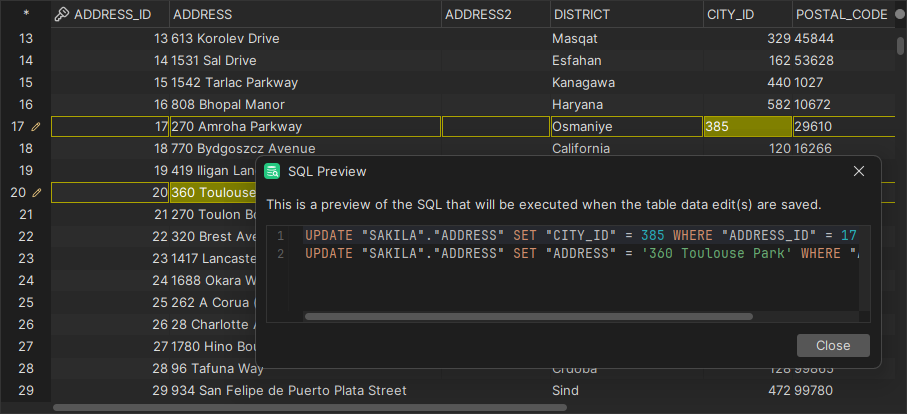
The statements DbVisualizer runs may differ slightly from the preview, because values are passed to the database as bind variables.
Confirming changes
Only in DbVisualizer Pro
This feature is only available in the DbVisualizer Pro edition.
Permissions decide whether you must confirm before your changes are saved to the database. They depend on the permission mode of the connection: Development, Test or Production. By default, a connection is in Development mode. You set the mode in the Connection tab of the connection's Object View tab.
To change the permissions, use the General / Permissions category in Tools → Tool Properties. Under Table Data Editor Permissions, choose for each kind of change and permission mode:
| Permission | Effect |
|---|---|
| Confirm | A window asks you to confirm or cancel the change. |
| No Confirm | The change is saved without asking. |
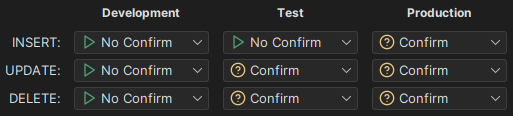
Permissions are a safety net in DbVisualizer. They don't replace the permissions in the database itself.
For the permissions for SQL statements, see Setting SQL Permissions.
Identifying the edited row
When you update or delete a row, DbVisualizer makes sure that exactly one row in the table is affected, so that a change can't silently alter other rows. To identify the row, DbVisualizer uses the first of these that is available:
- The primary key.
- A unique index. If there are several, DbVisualizer picks one of them.
- Columns that you choose in the Key Column Chooser.
If the table has no primary key or unique index, the Key Column Chooser is shown when you save:
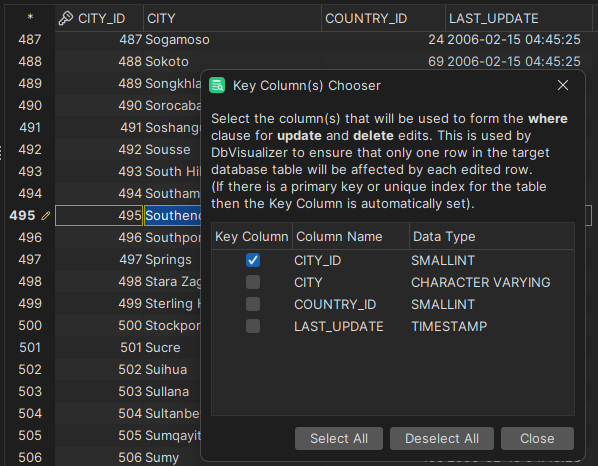
You can also open the Key Column Chooser at any time: right-click the grid and select Edit Table Data → Key Column Chooser. It is also available from the Key Column(s) button in the Save Result(s) error dialog.
If the edited row still can't be identified when you save, an error dialog is shown and your edits to that row are kept in the grid.
Copy and paste
To copy selected cells, select Copy Selection in the right-click menu, or press Ctrl+C (Cmd+C on macOS). You can paste the data elsewhere in DbVisualizer or in another application.
The column and newline delimiters used when copying and pasting are set by the Copy Grid Cells in CSV Format settings in Tools → Tool Properties, in the General / Grid category. The default settings work in most cases.
You can paste data copied from spreadsheet applications, such as Google Sheets, Microsoft Excel and OpenOffice Calc, both single cells and blocks of cells. Binary data can be copied and pasted between grids or within the same grid. You can also copy a file in your operating system's file browser and paste it into a cell with a binary type.
| Copy from spreadsheet | Paste into DbVisualizer grid | |
|---|---|---|
A block of cells is copied 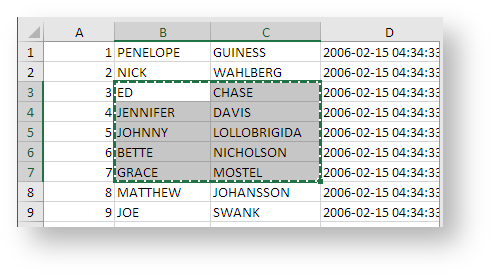 | The block is pasted into the selected region 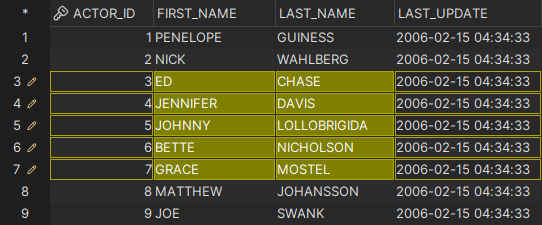 | |
| A block of cells is copied | If the target has fewer rows, you're asked whether to add rows 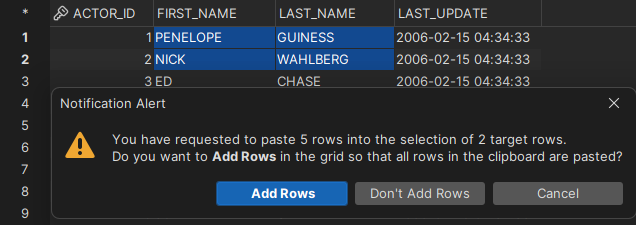 | |
A single cell is copied 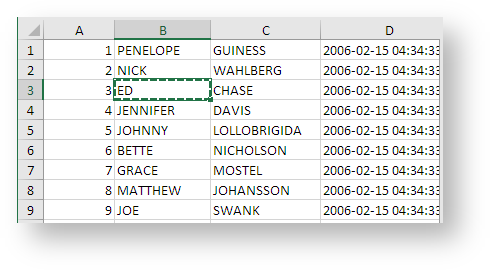 | Paste into selected target cell 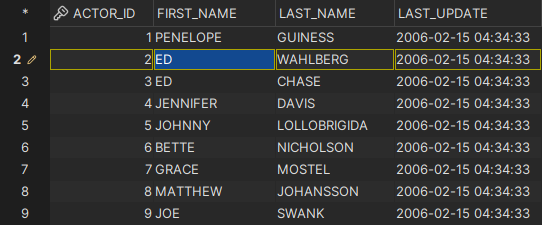 | |
| A single cell is copied | Paste and fill the single column target selection 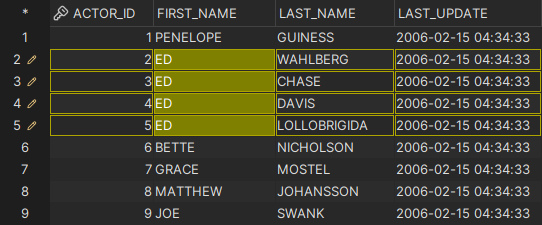 | |
Multiple cells in a single row are copied 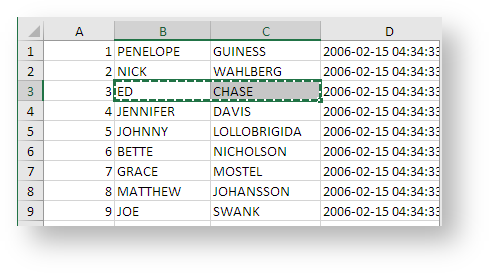 | Paste and fill the target selection 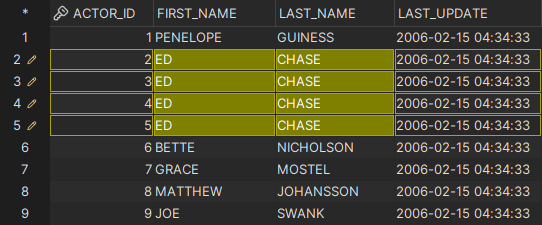 |
Data type checking
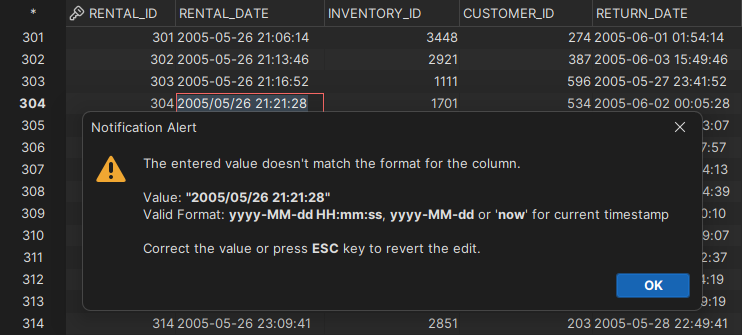
When you leave an edited cell, the new value is checked against the data type of the column. If the value doesn't match, this dialog is shown:
Newline, carriage return and tab characters
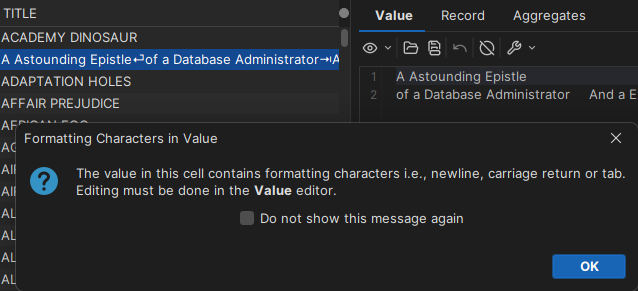
Newline, carriage return and tab characters in a value are shown as symbols in the grid and the record viewer. If you try to edit such a value directly in the grid, a warning is shown, so that you don't break the text by mistake:
Using the grid viewers
To edit a single value or a whole row next to the grid, use the value viewer and the record viewer. See Using the Grid Viewers.
Viewing and editing binary/BLOB and CLOB data
In DbVisualizer, binary data is a common name for values of these data types:
- LONGVARBINARY
- BINARY
- VARBINARY
- BLOB
You can fully view and edit binary and CLOB values only in the value viewer. The record viewer can show image data and load data from a local file.
You can edit binary data by importing it from a file or by using the text editor in the value viewer. You can also copy a file in your operating system's file browser and paste it into a BLOB or CLOB cell.
In the grid, binary and CLOB values are shown as an icon and the size of the value in bytes. You can choose another format in Tools → Tool Properties, in the General / Data Formats category. The By Value and Image Preview formats make the grid much slower and use much more memory.
With Image Preview, BLOB values in a supported image format are shown as thumbnails in the grid. You can set the thumbnail size in the same category.
In the same category, you can also choose how binary data is handled by Copy/Paste and Drag and Drop when the target doesn't support binary data.
Document data
DbVisualizer offers additional grid features for document-oriented databases. See Working with Document Data.