Importing Data (@import)
Only in DbVisualizer Pro
This feature is only available in the DbVisualizer Pro edition.
With the @import client-side command, you can import data from a file into a database table using an SQL script. Because it is a script, you can save it, run it again, combine it with other client-side commands such as @export and @mail, and run it from the command-line interface to automate imports. To import data interactively instead, see Importing Table Data.
You can import these file formats:
- CSV: delimited text files.
- Excel: XLSX, XLSM and the legacy XLS format.
- TXT: text files with fixed-width columns.
- XML and JSON: files in the XML and JSON formats that DbVisualizer exports.
Quick start
This example imports the file fruits.csv into the existing table FRUITS. The columns in the file are in the same order as the columns in the table.
1,Banana,1.22
2,Apple,0.35
3,Orange,0.55
The script to import the file:
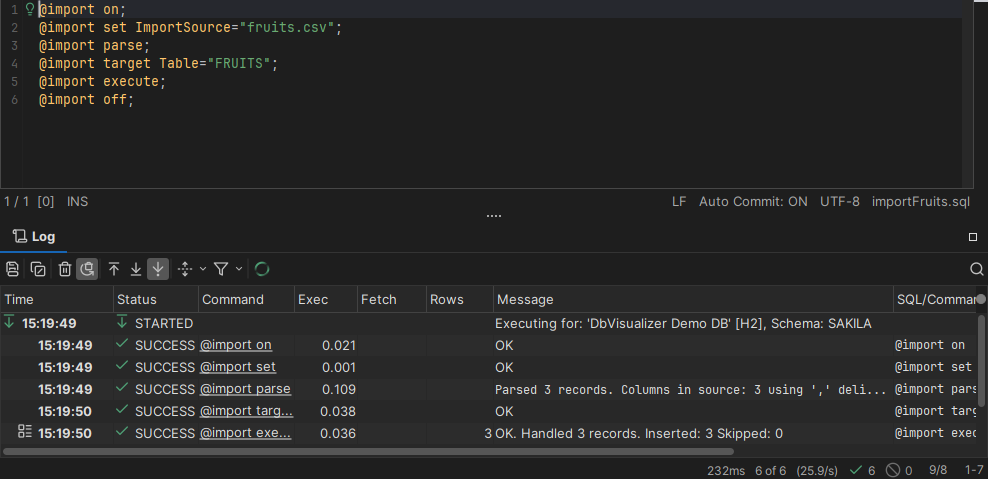
@import on;
@import set ImportSource="fruits.csv";
@import parse;
@import target Table="FRUITS";
@import execute;
@import off;
When you run the script in SQL Commander, the Log tab shows the result of each command. The @import execute command reports that 3 records were handled and inserted.
How an import works
An import is a sequence of @import commands, which you run in this order:
| Command | Description |
|---|---|
@import on | Starts an import session. |
@import set | Sets the file to import and how to read it. You can use several @import set commands. |
@import parse | Reads the file and analyzes the data. |
@import target | Sets the target table and how to map the columns, and checks that the data fits the table. |
@import execute | Inserts the data into the table. |
@import off | Ends the import session. |
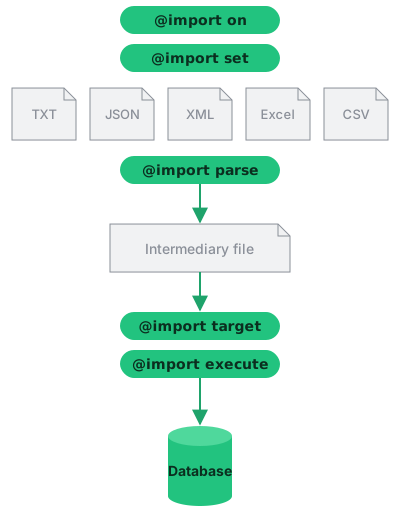
@import parse reads the file and stores the data in an internal format, together with the row in the file that each record comes from. It also analyzes the data to find the data type and size of each column.
@import target compares this analysis with the target table, for example to check that the values fit the table columns. It can also prepare the table, for example by emptying it or by dropping and creating it.
@import execute runs the INSERT statements. If a record can't be imported, the error message tells you which row in the file it comes from, and the record is saved so that you can import it again later.
If a command fails, the remaining @import commands in the session are not run.
@import on
@import on starts an import session. You normally don't need any parameters.
DbVisualizer stores the parsed data, the analysis results and any records that failed to import in a results folder. By default, a new folder with a unique name is created in the import folder in your DbVisualizer workspace (by default, .dbvis in your home folder). Folders in this default location that are older than two days are deleted when DbVisualizer starts.
| Parameter | Default | Description |
|---|---|---|
| ImportResultRoot | <WORKSPACE>/import | The folder in which the results folder is created. The folder must exist. |
| ImportResultDir | A generated name | The results folder. A relative path is relative to ImportResultRoot. If the folder already exists, the import fails unless Clean is true. |
| Clean | false | If true, an existing ImportResultDir folder is emptied before the import. |
| UseImportFile | The errorRecords.drec file of an earlier import, to import the failed records again. See Continuing a failed import. | |
| Comment | A comment that is written to the import log. |
For example, to store the results in /tmp/myimport and empty the folder if it exists:
@import on ImportResultDir="/tmp/myimport" Clean="true";
@import set
@import set sets the file to import and how to read it. The parameters are written as Name="value", and the names are case-insensitive.
You can use several @import set commands, but the first one must include ImportSource.
Parameters for all formats
| Parameter | Default | Description |
|---|---|---|
| ImportSource | Required. The path to the file to import. A relative path is relative to the script location, or to the folder set with @cd. | |
| Format | From the file extension | The file format: CSV, XLS, XLSX, XLSM, JSON, TXT or XML. You only need it if the file extension doesn't match the format. |
| Encoding | As set in Tool Properties | The character encoding of the file. |
| HeaderStartRow | 0 | The row with the column names. The first row is 1, and 0 means that the file has no header row. If you set this to n and don't set StartRowOfData in the same command, StartRowOfData is set to n + 1. |
| StartRowOfData | 1 | The first row to import. It must be greater than HeaderStartRow. |
| SkipHeader | true | If false, the header row is also imported as data. |
| SkipEmptyRows | true | If true, empty rows are skipped. |
| SkipRowsStartingWith | Rows whose first column starts with this text are skipped, for example // for comment rows. | |
| MaxRows | -1 | The maximum number of records to import. -1 means no limit. |
| ShowNullAs | As set in Tool Properties | The value that represents NULL, for example (null). |
| DateFormat | As set in Tool Properties | The format of date values. See Changing Date and Number Formats. |
| TimeFormat | As set in Tool Properties | The format of time values. |
| TimeStampFormat | As set in Tool Properties | The format of timestamp values. |
| DecimalSeparator | . | The decimal separator in numbers. |
| ThousandSeparator | , | The thousands separator in numbers. |
| BooleanTrueFormats | true, yes, 1, on | A comma-separated list of values that mean true. |
| BooleanFalseFormats | false, no, 0, off | A comma-separated list of values that mean false. |
| TxtTrim | true for TXT, otherwise false | If true, leading and trailing spaces are removed from the values. |
| FailOnParseFailure | false | If true, the import fails if a value can't be parsed. |
| FailOnConvertFailure | false | If true, the import fails if a value can't be converted to the column's data type. |
| FailOnNoColumnsFoundFailure | true | If true, the import fails if no columns are found in the target table, for example because the table doesn't exist. |
For example, to import data from row 5 and skip rows that start with //:
@import set ImportSource="data.csv" StartRowOfData="5" SkipRowsStartingWith="//";
To use the column names in row 1 and import data from row 2:
@import set ImportSource="data.csv" HeaderStartRow="1";
CSV parameters
| Parameter | Default | Description |
|---|---|---|
| CsvColumnDelimiter | The column delimiter, for example ;. It can be more than one character. Use tab or \t for a tab. If you set this, CsvColumnDelimiterType is set to String. | |
| CsvColumnDelimiterType | Auto Detect | Auto Detect to detect the most common delimiters automatically, or String to use CsvColumnDelimiter. If the delimiter can't be detected, the parse fails and you need to set CsvColumnDelimiter. |
| CsvTextQuotedBetween | None | The character that encloses values that contain the delimiter, line breaks or other special characters. Use Single for ', Double for ", None for no quote character, or any other character. A file can only use one quote character. If the values in the file are quoted and you don't set this, the quote characters are imported as part of the values. |
For example, for a file where the columns are separated by tabs and the values are enclosed in double quotes:
@import set ImportSource="data.csv" CsvColumnDelimiter="tab" CsvTextQuotedBetween="Double";
Excel parameters
| Parameter | Default | Description |
|---|---|---|
| ExcelSheetName | The name of the sheet to import. Only for XLSX and XLSM files. | |
| ExcelSheetId | 1 | The number of the sheet to import. In XLSX and XLSM files, the first sheet is 1. In XLS files, the first sheet is 0, so set ExcelSheetId="0" to import the first sheet. You can use ExcelSheetName or ExcelSheetId, but not both. |
| ExcelCellPolicyError | EMPTY | What to do with a formula cell whose value is an error, such as #DIV/0!. The value must be in uppercase:
|
TXT parameters
| Parameter | Default | Description |
|---|---|---|
| TxtColumns | Required for TXT files. The character positions of the columns, for example 0,6. See Importing a fixed-width text file. |
There are no parameters specific to XML and JSON files.
@import parse
@import parse reads the file and analyzes the data. It has no parameters.
@import parse;
The result shows the number of records and columns found, and the delimiter for a CSV file. For example:
Parsed 5 records. Columns in source: 2 using ',' delimiter

INDEX NAME     TYPE       NULLABLE FROM ROW
----- -------- ---------- -------- --------
0     NAME     String(6)  No       2
1     BIRTHDAY String(16) No       4

Total bytes: 73 B
For each column, the result shows:
- INDEX: The index of the column. The first column is 0.
- NAME: The column name, if
HeaderStartRowis set. - TYPE: The data type found, with the size of the longest value.
- NULLABLE: Whether the column is nullable.
- FROM ROW: The row in the file that decided the data type.
FROM ROW helps you find out why a column gets an unexpected type. In the example, the BIRTHDAY column is analyzed as a string because of the value in row 4. See Overriding a detected data type.
@import target
@import target sets the table to import into and how to map the columns. It checks that the data fits the table, and it can also empty, drop or create the table before the import.
| Parameter | Default | Description |
|---|---|---|
| Table | The table to import into. Write the name as the database stores it, for example in uppercase in H2 and Oracle. | |
| Schema | The current schema | The schema of the table. |
| Catalog | The current catalog | The catalog of the table. |
| ColumnMapping | How the columns in the file map to the columns in the table. By default, the first column in the file is imported into the first column in the table, and so on. See Mapping columns. | |
| ColumnMappingFile | A file with the column mapping. It uses the same syntax as ColumnMapping, but you can put each mapping on its own line and use comments (--, // and /* */). You can't use both ColumnMapping and ColumnMappingFile. | |
| CleanData | How to clean the table before the import:
| |
| ClearTableMethod | Truncate if supported | How CleanData="Clear" deletes the rows: Truncate or Delete. By default, TRUNCATE is used if the database supports it, otherwise DELETE. |
| ClearTableSQL | The SQL statement to use for CleanData="Clear", instead of TRUNCATE or DELETE. | |
| CreateTableSQL | The SQL statement that creates the table. Use it with CleanData="Drop", or to create a table that doesn't exist. | |
| CreateTableSQLFile | A file with the SQL statement that creates the table. You can use CreateTableSQL or CreateTableSQLFile, but not both. | |
| DropTableSQL | The SQL statement to use to drop the table, instead of the default DROP TABLE statement. | |
| FailOnDropFailure | false | If true, the import fails if the table can't be dropped. |
| SkipValidateColumns | A comma-separated list of table column names that are not checked against the data, for example "Column1,Column2". | |
| SkipValidateColumnNumbers | A comma-separated list of table column numbers that are not checked against the data, for example "1,5". | |
| SkipValidateJdbcTypes | A comma-separated list of JDBC types that are not checked against the data, for example "INTEGER,VARCHAR". | |
| UseDelimitedIdentifiers | true | If true, table and column names in the INSERT statements are enclosed in delimiters, if the database supports it. |
For example, to drop and create the table MYTABLE, and import the first column in the file into ID and the third column into NAME:
@import target Table="MYTABLE" ColumnMapping="0=ID,2=NAME" CleanData="Drop"
               CreateTableSQL="CREATE TABLE MYTABLE (id SMALLINT, name VARCHAR(45))";
To delete all rows in the table before the import:
@import target Table="MYTABLE" CleanData="Clear";
Mapping columns
With ColumnMapping, you choose which column in the file goes into which column in the table, and you can leave out columns. The syntax is a comma-separated list of mappings:
ColumnMapping="<file column>=<table column>, <file column>=<table column>, ..."
- A file column is a column index, where the first column is 0, or a column name from the header row.
- A table column is a column position, where the first column is 1, or a column name.
- Column names are case-sensitive. Write table column names as the database stores them, for example in uppercase in H2 and Oracle.
For example, ColumnMapping="0=2, 1=3" or ColumnMapping="id=NO, color=COLOR".
You can also override the data type that @import parse found for a file column, by adding the type in parentheses after the file column, for example ColumnMapping="id(Number)=NO, color=COLOR". The types are String, Date, Time, Timestamp, Number, Decimal Number, Boolean, BLOB and CLOB. See Overriding a detected data type.
@import execute
@import execute inserts the data into the table.
| Parameter | Default | Description |
|---|---|---|
| BatchImport | true | If true, rows are inserted in batches, which is much faster. Some databases and drivers have limited support for batch inserts; if the import fails, try setting this to false. |
| BatchSize | 1000 | The number of rows in each batch. |
| FailOnInsertFailure | false | If true, the import fails if an INSERT statement fails. |
| Comment | A comment that is written to the import log. |
The inserted rows are committed according to the auto-commit setting in SQL Commander. See Committing and Rolling Back Changes.
For example, to insert the rows one by one:
@import execute BatchImport="false";
@import off
@import off ends the import session. It has no parameters.
Examples
Skipping rows and changing the column order
The file cars.csv uses ! as the column delimiter, and the brand comes before the model:
Volvo!XC90
BMW!F32 4 Series
Volvo!XC60
Mercedes!C197 SLS AMG
The table has the columns in the opposite order, so the columns must be mapped. In this example, the BMW rows are also skipped:
CREATE TABLE carmodel (model VARCHAR(50), brand VARCHAR(50));

@import on;
@import set ImportSource="cars.csv" CsvColumnDelimiter="!" SkipRowsStartingWith="BMW";
@import parse;
@import target Table="CARMODEL" ColumnMapping="0=BRAND,1=MODEL";
@import execute;
@import off;
CsvColumnDelimiter="!"sets the column delimiter.SkipRowsStartingWith="BMW"skips the rows where the first column starts with BMW.ColumnMapping="0=BRAND,1=MODEL"imports the first column in the file into the BRAND column, and the second column into the MODEL column.
The table after the import:
model        brand
------------ --------
XC90         Volvo
XC60         Volvo
C197 SLS AMG Mercedes
Overriding a detected data type
@import parse decides the data type of each column from the values in the file. If a single value doesn't match the type, the column is analyzed as a string, and you may need to override the type.
In the file birthdays.csv, Lotta's birthday is not a valid date:
NAME,BIRTHDAY
August, "Sat, 21 Jul 1962"
Sven, "Fri, 21 Jan 1972"
Lotta, "NoData"
Bert, "Sat, 21 Jul 1962"
@import parse therefore analyzes the BIRTHDAY column as a string, because of row 4:
INDEX NAME     TYPE       NULLABLE FROM ROW
----- -------- ---------- -------- --------
0     NAME     String(6)  No       2
1     BIRTHDAY String(16) No       4
Inserting strings into a DATE column would fail for all rows. To import the valid dates, set the date format and override the type in the column mapping:
CREATE TABLE birthdays (name VARCHAR(40), birthday DATE);

@import on;
@import set ImportSource="birthdays.csv" HeaderStartRow="1" CsvTextQuotedBetween="Double" DateFormat="EEE, d MMM yyyy";
@import parse;
@import target Table="BIRTHDAYS" ColumnMapping="0=NAME,1(Date)=BIRTHDAY";
@import execute;
@import off;
DateFormat="EEE, d MMM yyyy"sets the format of the dates in the file.1(Date)=BIRTHDAYimports the second column into the BIRTHDAY column, as a date.
August, Sven and Bert are imported. Lotta's row fails, and the error tells you which row in the file it comes from:
1 Record affected, Record: 0 originating at row: 4
DataRecordException: Convert error, Column: BIRTHDAY at index: 1
DataTypeConversionException: Value is 'NoData'. Not a valid date format. Valid format: 'EEE, d MMM yyyy'
Importing a fixed-width text file
In the file fruitlist.txt, the first column starts at character position 0 and the second at position 6:
001   APPLE
002    LEMON
003   ORANGE
@import on;
@import set ImportSource="fruitlist.txt" TxtColumns="0,6";
@import parse;
@import target Table="FRUITLIST";
@import execute;
@import off;
The table after the import:
id name
-- ------
1  APPLE
2  LEMON
3  ORANGE
LEMON is imported without the leading space, because values in TXT files are trimmed by default (see TxtTrim).
The TxtColumns parameter is a comma-separated list of columns. The first character on a line is at position 0. Each column can be written as:
start-end: fromstarttoend, includingend.start+n: fromstarttostart + n, including both.start: fromstartto the character before the next column, or to the end of the line for the last column.
Examples for the line AAA BBB CCC:
| TxtColumns | Columns |
|---|---|
0-2, 4-5 | "AAA", "BB" |
1-3, 8-9 | "AA", "CC" |
0, 4, 8 | "AAA", "BBB", "CCC" |
1, 8-9 | "AA BBB", "CC" |
0+3, 4+3, 8 | "AAA", "BBB", "CCC" |
0+7, 8+1 | "AAA BBB", "CC" |
Importing an Excel sheet
In the sheet mydata in the file excelData.xlsx, the second cell in row 2 contains a formula that results in an error:
A   B
--  --------
1   A
2   #DIV/0!
3   C
To skip rows with formula errors:
CREATE TABLE exceldata (id INT, value VARCHAR(50));

@import on;
@import set ImportSource="excelData.xlsx" ExcelSheetName="mydata" ExcelCellPolicyError="SKIP_ROW";
@import parse;
@import target Table="EXCELDATA";
@import execute;
@import off;
The table after the import:
id value
-- -----
1  A
3  C
Testing an import with dry run
To check an import without changing the database, run @import target and @import execute with @set dryrun on. The data is parsed and checked against the table, but the table is not cleaned and no rows are inserted.
Turn on dry run after @import parse, because @import on, @import set and @import parse are not run in dry run mode:
@import on;
@import set ImportSource="fruits.csv";
@import parse;
@set dryrun on;
@import target Table="FRUITS" CleanData="Clear";
@import execute;
@set dryrun off;
@import off;
An import that passes the dry run can still fail on checks in the database, such as primary key or unique constraints.
Continuing a failed import
Records that can't be imported are saved in the file errorRecords.drec in the results folder. After you fix the problem, you can import only those records again. When the import fails, the Log tab shows the commands to do so.
In this example, the name Clementine is too long for the name column:
ID,FRUIT,PRICE
1,Banana,1.22
2,Clementine,0.35
3,Orange,0.55
CREATE TABLE fruits (id SMALLINT, name VARCHAR(6), price DECIMAL(10,2));

@import on ImportResultDir="/tmp/importFirst" Clean="true";
@import set ImportSource="fruits.csv" HeaderStartRow="1";
@import parse;
@import target Table="FRUITS" SkipValidateJdbcTypes="VARCHAR";
@import execute;
@import off;
ImportResultDir="/tmp/importFirst"stores the results in a known folder, so that it is easy to find the failed records.SkipValidateJdbcTypes="VARCHAR"turns off the check of VARCHAR columns, so that the import starts and the row fails in the database. Without it,@import targetwould stop the import before any rows are inserted.
The database rejects row 3 of the file:
1 Record affected, Record: id = 0 originating at row: 3
DataRecordException: Error when importing data.
MysqlDataTruncation: Data truncation: Data too long for column 'name' at row 1
The table after the first import:
id name   price
-- ------ -----
1  Banana 1.22
3  Orange 0.55
To import the failed record, make the column wider and run the import again with UseImportFile:
ALTER TABLE fruits MODIFY COLUMN name VARCHAR(20);

@import on ImportResultDir="/tmp/importSecond" UseImportFile="/tmp/importFirst/errorRecords.drec" Clean="true";
@import execute;
@import off;
You don't need @import set, @import parse or @import target, because the settings and the target of the first import are used.
The table after the second import:
id name       price
-- ---------- -----
1  Banana     1.22
3  Orange     0.55
2  Clementine 0.35