Sending Email (@mail)
Only in DbVisualizer Pro
This feature is only available in the DbVisualizer Pro edition.
With the @mail client-side command, you can send emails from an SQL script, for example to send the results of an @export to someone. You can attach files, insert the content of text files in the message, and include information about the script run, such as the number of rows. @mail works in SQL Commander and in the command-line interface.
Quick start
- Set up a mail server account, for example called
My Gmail. See Setting up a mail server account. Run this command in SQL Commander:
@mail MailServerAccount="My Gmail" To="jane.doe@example.com" Subject="Hello" Body="Sent from DbVisualizer.";
When the mail has been sent, the Log tab shows OK.
Setting up a mail server account
A mail server account stores the settings for your mail server, including the password, so that you only need the MailServerAccount parameter in @mail. The password is stored encrypted in the DbVisualizer password vault.
To add an account:
- Open Tools → Tool Properties, and select Mail Server Accounts under the General tab.
- Click the Add Mail Server Account button. Choose Gmail or Outlook.com to start from the settings for that service, or Add Other.
- Enter the settings. See the table below.
- To check the settings, select the account and click the Send Mail toolbar button to send a test email.
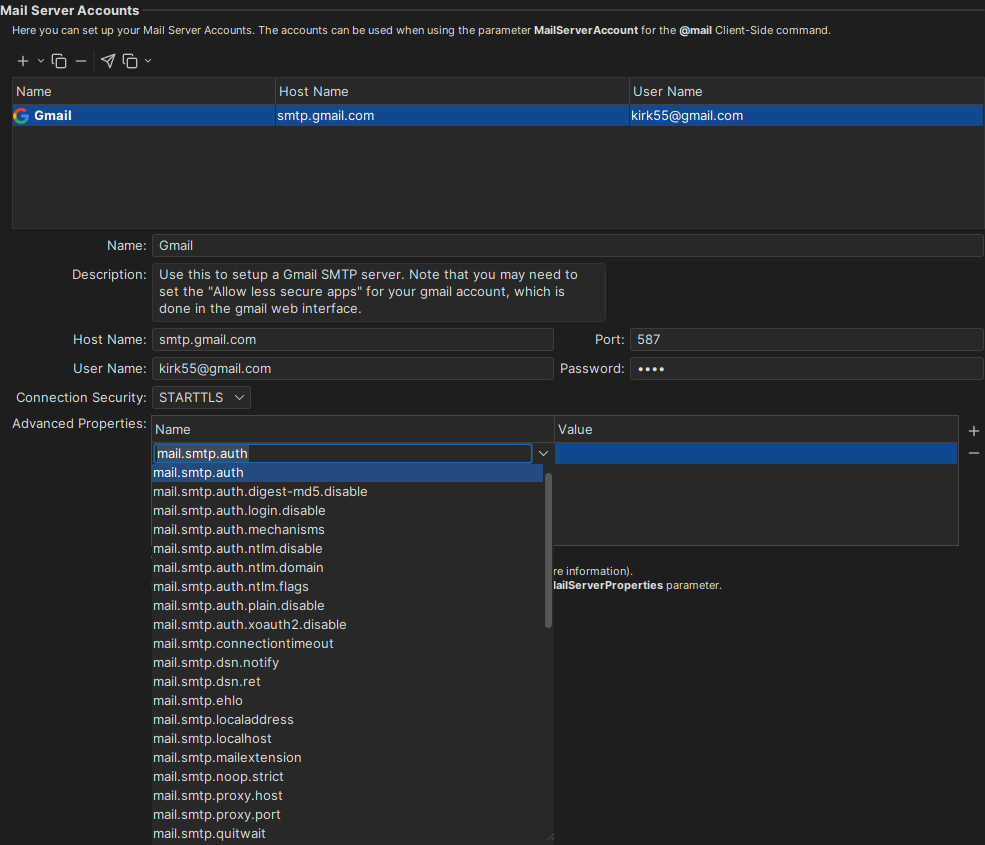
| Field | Description | Parameter |
|---|---|---|
| Name | The name to use in MailServerAccount. The name is case-sensitive. | MailServerAccount |
| Description | An optional description. | |
| Host Name | The name or IP address of the outgoing mail server, for example smtp.gmail.com. | MailServerHost |
| Port | The port of the mail server. The default is 587. | MailServerPort |
| User Name | The user name for the mail server, often your email address. | MailServerUser |
| Password | The password for the mail server. | MailServerPassword |
| Connection Security | None, STARTTLS or SSL. | MailServerSecurity |
| Advanced Properties | Other properties to send to the mail server when connecting. | MailServerProperties |
The Parameter column shows the @mail parameter with the same setting, if you don't use an account.
To copy a @mail command for the account to the clipboard, select the account and click the Copy as client @mail command toolbar button. You can copy a command with only the MailServerAccount parameter, or with all the mail server parameters.
Parameters for @mail
The parameters are written as Name="value", and the names are case-insensitive. You must set at least one of To, Cc and Bcc, and either MailServerAccount or the mail server parameters.
Recipients and content
| Parameter | Default | Description |
|---|---|---|
| To | A comma-separated list of recipients, for example "John Doe <john.doe@example.com>, jane.doe@example.com". | |
| Cc | A comma-separated list of recipients of a copy. | |
| Bcc | A comma-separated list of recipients of a blind copy. | |
| From | The mail server user name | The sender address. The mail server may not accept other addresses than your own. |
| ReplyTo | The address for replies, if it is not the sender address. | |
| Subject | The subject. You can use placeholders. | |
| Body | The message, as plain text. Line breaks inside the quotes are kept. You can use placeholders, for example to insert the content of a file. | |
| MailHeaders | Extra mail headers, separated by spaces. Quotes inside the value must be doubled, for example MailHeaders="X-Priority=""1""" to mark the mail as important in many mail clients. | |
| MailTemplate | A file with the recipients, subject and message. See Using a mail template. |
Attachments
| Parameter | Default | Description |
|---|---|---|
| FileSource | A file to attach. To attach several files, add a number: FileSource1, FileSource2, and so on. See Attaching files. | |
| FileSource_AttachType | Attach | How to add the file: Attach, Inline or Embed. For a numbered file, use for example FileSource1_AttachType. |
| FileSource_ContentType | From the file extension | The MIME type of the file, for example text/html. For a numbered file, use for example FileSource1_ContentType. |
Mail server
You don't need these parameters if you use a mail server account. If you set them together with MailServerAccount, they override the settings in the account.
| Parameter | Default | Description |
|---|---|---|
| MailServerAccount | The name of a mail server account. The name is case-sensitive. | |
| MailServerHost | The name or IP address of the outgoing mail server. | |
| MailServerPort | 25 | The port of the mail server, for example 587. |
| MailServerUser | The user name for the mail server. | |
| MailServerPassword | The password for the mail server. The password is stored as plain text in the script; to avoid that, use a mail server account. | |
| MailServerSecurity | None | None, STARTTLS or SSL. Write the value in uppercase, exactly as shown. |
| MailServerProperties | Other properties to send to the mail server, separated by spaces. Quotes inside the value must be doubled, for example MailServerProperties="mail.smtp.auth=""true"" mail.smtp.starttls.enable=""true""". |
Attaching files
With FileSource, you can add a file to the mail in three ways:
- Attach: The file is attached. This is the default.
- Inline: The file is shown in the message, for example an HTML file.
- Embed: The content of a text file, such as a CSV file, is inserted in the message. The file is not attached. To choose where to insert it, use a placeholder such as
{{FileSource}}inBody. Otherwise, it is added at the end of the message.
A file path can be absolute, or relative to the script location or the folder set with @cd. To add several files, number them, for example FileSource1 and FileSource2. The numbers don't need to be consecutive.
For a numbered file, you can combine the types, for example FileSource1_AttachType="Attach, Embed" to both attach the file and insert its content in the message.
Some combinations are not possible. In these cases the file is attached instead, and the Log tab shows why:
- Only one file can be inline. If several files are inline, they are all attached.
- A file can't be inline if
Bodyis set. - A file can't be both inline and embedded. It is embedded and attached.
- Excel files can't be inline or embedded.
Placeholders
In Subject and Body, you can use placeholders in double curly braces, such as {{dbvis-current.rowCount}}. When the mail is sent, they are replaced with their values:
@mail MailServerAccount="My Gmail" To="jane.doe@example.com"
      Subject="Export done"
      Body="{{dbvis-current.rowCount}} rows were exported in {{dbvis-current.commandElapsedExecTime}}.";
You can also use DbVisualizer variables in any parameter, written as ${name}$.
Files and dates
| Placeholder | Description |
|---|---|
{{FileSource}} | The content of the file in FileSource. Use {{FileSource1}} for FileSource1, and so on. |
{{dbvis-date}} | The current date. |
{{dbvis-time}} | The current time. |
{{dbvis-timestamp}} | The current date and time. |
The script so far
These placeholders describe the commands that have run in the script before @mail.
| Placeholder | Description |
|---|---|
{{dbvis-current.executionCount}} | The number of statements and commands that have run. |
{{dbvis-current.successCount}} | The number of statements and commands that succeeded. |
{{dbvis-current.errorCount}} | The number of statements and commands that failed. |
{{dbvis-current.warningCount}} | The number of statements and commands with warnings. |
{{dbvis-current.rowCount}} | The number of rows returned. |
{{dbvis-current.updateCount}} | The number of rows updated. |
{{dbvis-current.numberOfResultSetsFetched}} | The number of results. |
{{dbvis-current.emptyResultSetsCount}} | The number of empty results. |
{{dbvis-current.commandElapsedExecTime}} | The execution time, for example 1s 234ms. |
{{dbvis-current.commandElapsedFetchTime}} | The time to fetch the results. |
{{dbvis-current.schemaChanged}} | true if the schema was changed. |
{{dbvis-current.catalogChanged}} | true if the catalog was changed. |
{{dbvis-current.stoppedOnErrors}} | true if the script stopped because of an error. |
{{dbvis-current.stoppedOnSQLWarning}} | true if the script stopped because of an SQL warning. |
{{dbvis-current.stoppedOnNoRows}} | true if the script stopped because a query returned no rows. |
{{dbvis-current.executorWasInterrupted}} | true if the script was stopped by the user. |
The last statement
These placeholders describe the statement or command just before @mail.
| Placeholder | Description |
|---|---|
{{dbvis-last.statusCode}} | The status code. |
{{dbvis-last.isError}} | true if it failed. |
{{dbvis-last.executionMetrics.begin}} | When it started. |
{{dbvis-last.executionMetrics.elapsed}} | How long it took. |
Placeholders that don't exist are left as they are.
Using a mail template
With MailTemplate, you can keep the recipients, subject and message in a text file. Each setting is on its own line, and the message comes last, after Body:. It can span several lines:
To: jane.doe@example.com
Cc: john.doe@example.com
Subject: Weekly report
Body: Hi Jane,

The weekly report is attached.
The keys you can use are To:, Cc:, Bcc:, From:, ReplyTo:, Subject: and Body:. Parameters in the @mail command override the template, so you can reuse it with, for example, another subject:
@mail MailServerAccount="My Gmail" MailTemplate="weekly.txt" Subject="Weekly report, corrected"
      FileSource="report.xlsx";
Examples
Sending an exported HTML file in the message
This script exports a result to an HTML file and sends it as the message. Body is not set, because a file can't be inline otherwise.
@export on;
@export set Filename="g_actors.html" Format="HTML";
SELECT * FROM actor WHERE last_name LIKE 'G%';
@export off;

@mail MailServerAccount="My Gmail" To="jane.doe@example.com" Subject="Actors starting with G"
      FileSource="g_actors.html" FileSource_AttachType="Inline";
Sending exported data in the message and attaching a log file
This script exports two results to CSV files and inserts them in the message. The log file is attached.
@log "logfile.txt";

@export on;
@export set Filename="g_actors.csv" Format="CSV";
SELECT * FROM actor WHERE last_name LIKE 'G%';
@export off;

@export on;
@export set Filename="f_countries.csv" Format="CSV" CsvIncludeColumnHeader="false";
SELECT country FROM country WHERE country LIKE 'F%';
@export off;

@mail MailServerAccount="My Gmail" To="jane.doe@example.com" Subject="Report"
Body="Hi,

{{dbvis-current.rowCount}} rows were exported in {{dbvis-current.commandElapsedExecTime}}.

Actors with a last name starting with G:
{{FileSource}}

Countries starting with F:
{{FileSource1}}

The log file is attached."
FileSource="g_actors.csv" FileSource_AttachType="Embed"
FileSource1="f_countries.csv" FileSource1_AttachType="Embed"
FileSource2="logfile.txt";
Getting notified when a script fails
@mail runs even if the script has stopped because of an error, so you can end a script with a mail about the result:
@mail MailServerAccount="My Gmail" To="jane.doe@example.com"
      Subject="Nightly script: {{dbvis-current.errorCount}} errors"
      Body="Statements run: {{dbvis-current.executionCount}}
Errors: {{dbvis-current.errorCount}}";
Testing a script without sending mail
With @set dryrun on, @mail checks its parameters, for example that the attached files exist, but doesn't send the mail.